
Fitness Tracker vs Router: Fixing Home Gym Sync Interference
Resolve the fitness tracker vs router signal clash. Configure your Wi-Fi to eliminate Bluetooth sync failures and packet loss in your home gym.

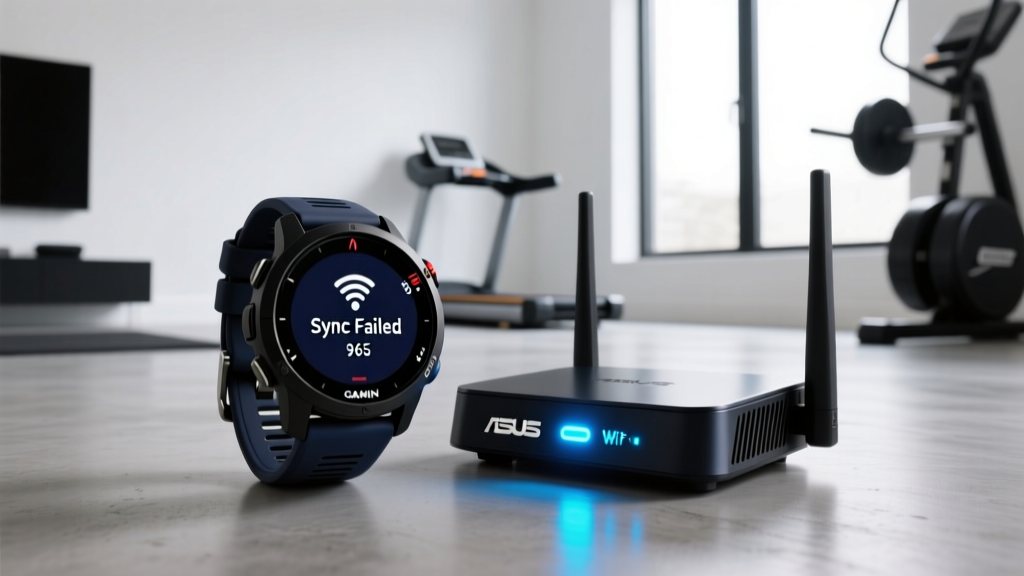
When your morning workout data refuses to upload, the battle of the fitness tracker vs router is usually to blame. This signal clash occurs when high-density home networks suffocate the low-energy Bluetooth protocols your wearable relies on to transfer data. In a modern smart home gym filled with connected treadmills, smart scales, and Wi-Fi 7 mesh nodes, the 2.4GHz spectrum is fiercely contested. Understanding how to configure your network hardware is the difference between seamless daily syncing and chronic packet loss.
According to the FCC Guidelines on Wireless Interference, unlicensed devices operating in the 2.4GHz band must accept any interference received, meaning your $400 smartwatch will always lose a turf war to a $300 mesh router broadcasting at full power. This guide provides exact, actionable network configurations to force peaceful coexistence between your wearables and your home network.
The Core Conflict: Fitness Tracker vs Router Signal Clashes
To resolve the fitness tracker vs router dynamic, you must look at the physics of the 2.4GHz spectrum. Bluetooth Low Energy (BLE) uses Adaptive Frequency Hopping (AFH) to bounce across 40 distinct channels between 2.402 GHz and 2.480 GHz, avoiding crowded frequencies. However, modern Wi-Fi routers often default to a 40MHz channel width on the 2.4GHz band to maximize throughput for legacy devices.
The 40MHz Problem: A 40MHz Wi-Fi channel consumes roughly 80% of the available 2.4GHz spectrum. This leaves your fitness tracker's BLE radio with almost no empty channels to hop into, resulting in severe sync timeouts and dropped connections. The Bluetooth SIG Technical Overview confirms that AFH requires sufficient spectral whitespace to maintain reliable link layers.
Furthermore, physical interference in a home gym exacerbates the issue. The brushed DC motors in motorized treadmills and ellipticals generate broad-spectrum electromagnetic interference (EMI) that specifically degrades 2.4GHz signals. If your router is placed behind a smart treadmill, the combined EMI and spectrum crowding will completely block your tracker from reaching your smartphone or hub.
Head-to-Head: Best Routers for High-Density Wearable Syncing
Not all routers handle IoT and BLE coexistence equally. When evaluating a fitness tracker vs router interference issue, the hardware's ability to isolate bands and manage channel widths is critical. Here is how the top 2026 networking contenders handle smart home gym environments.
| Router Model | 2.4GHz Optimization | Smart Band Steering | Approx. Price (2026) |
|---|---|---|---|
| ASUS RT-AX86U Pro | Manual 20MHz lock; dedicated IoT SSID | AiMesh smart steering pushes phones to 5GHz/6GHz | $249 |
| TP-Link Deco XE75 (Wi-Fi 6E) | Auto-width reduction; excellent BLE coexistence | Offloads smart home devices to 6GHz backbone | $299 (2-pack) |
| Netgear Orbi RBKE963 | Advanced IoT network isolation | Dedicated 2.4GHz IoT band separate from main traffic | $899 |

The TP-Link Deco XE75 offers the best price-to-performance ratio for home gyms. By utilizing the 6GHz band for mesh backhaul and high-bandwidth devices (like streaming workout videos on a smart TV), it leaves the 2.4GHz band relatively quiet, allowing your Garmin, Whoop, or Apple Watch to sync without fighting for airtime. The ASUS RT-AX86U Pro remains the enthusiast choice due to its granular control over IoT SSIDs, allowing you to quarantine your fitness equipment on a separate virtual network with strict 20MHz channel limits.
Step-by-Step Router Configuration for Flawless Tracker Sync
Upgrading your hardware is only half the solution. You must manually configure the radio settings to prioritize BLE coexistence over raw 2.4GHz speed. Follow these exact steps in your router's admin panel or mobile app.
Step 1: Isolate and Rename the 2.4GHz Band
Disable 'Smart Connect' or 'Band Steering' that merges your 2.4GHz and 5GHz networks under a single SSID. Many fitness trackers and smart scales fail to resolve DNS requests when the router rapidly steers them between bands. Create a distinct SSID specifically for your 2.4GHz network (e.g., HomeGym_2.4G) and connect your smartphone and fitness hub to this network during the initial pairing process.
Step 2: Force 20MHz Channel Width
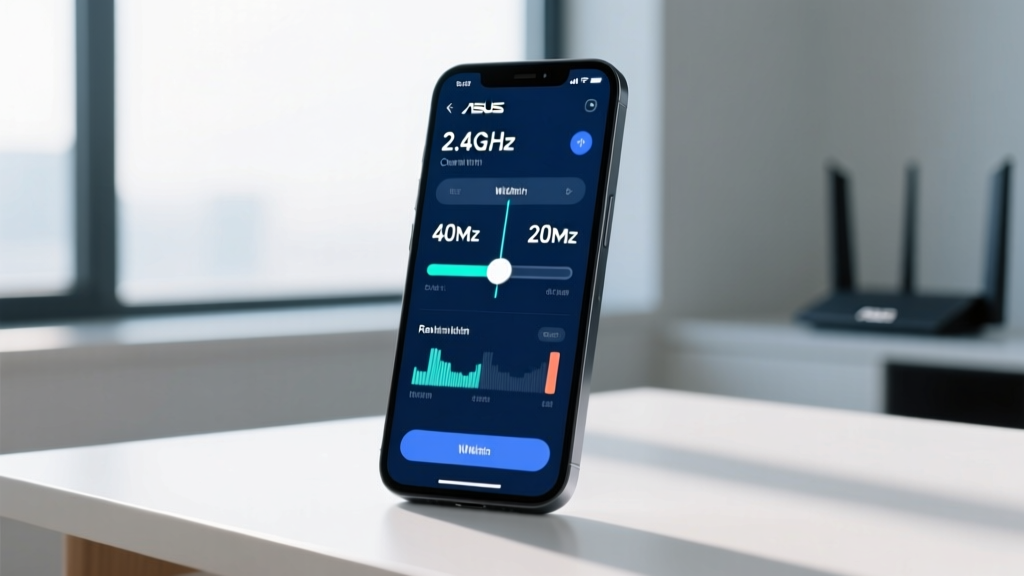
Navigate to your router's Wireless Settings > 2.4GHz Band > Channel Width. Change the setting from 'Auto' or '40MHz' to strictly 20MHz. This single adjustment immediately frees up 50% of the spectrum, giving your tracker's BLE radio the whitespace it needs to utilize Adaptive Frequency Hopping.
Step 3: Lock to Channels 1, 6, or 11
Do not leave your 2.4GHz control channel on 'Auto'. Manually lock it to Channel 1 (2.412 GHz), Channel 6 (2.437 GHz), or Channel 11 (2.462 GHz). These are the only three non-overlapping channels in the 2.4GHz band. Using intermediate channels (like 3 or 8) causes partial overlap with neighboring networks, creating a noisy floor that drops BLE sync packets.
⚠️ Warning: The Treadmill Motor Factor
If your router is located in the same room as a motorized treadmill, ensure it is mounted at least 6 feet away from the treadmill's front motor housing. The carbon brushes inside the motor generate severe EMI. If you must place the router near the equipment, use a 5GHz or 6GHz mesh node for your primary devices and rely on a distant 2.4GHz node strictly for IoT and tracker syncing.
Troubleshooting Decision Tree: Sync Dropouts
When your device still refuses to sync, use this diagnostic framework to isolate the failure point.
- Symptom: Tracker pairs, but sync stalls at 90% and times out.
Cause: MTU (Maximum Transmission Unit) mismatch or 2.4GHz congestion.
Fix: Reboot the router to clear the ARP cache, and ensure the 2.4GHz channel width is locked to 20MHz. - Symptom: Tracker connects to phone, but cloud upload fails.
Cause: Router's AP Isolation (Client Isolation) is enabled on the IoT SSID.
Fix: Disable 'AP Isolation' or 'Guest Network Restrictions' in your router's security settings to allow local device-to-device communication. - Symptom: Intermittent disconnects only during evening hours.
Cause: Neighbor Wi-Fi congestion or microwave oven interference.
Fix: Use a free Wi-Fi analyzer app on your smartphone to identify the least congested channel (1, 6, or 11) and manually lock your router to that specific channel.
Frequently Asked Questions
Does Wi-Fi 7 eliminate fitness tracker interference?
Wi-Fi 7 introduces Multi-Link Operation (MLO) and heavily utilizes the 6GHz band, which drastically reduces congestion on the 2.4GHz band. While Wi-Fi 7 routers will keep your high-bandwidth devices off the 2.4GHz spectrum, the physical limitations of Bluetooth Low Energy remain unchanged. You still must configure your 2.4GHz band to 20MHz width for optimal BLE coexistence.
Why does my Apple Watch sync fine, but my Garmin fails?
Apple Watches utilize Wi-Fi syncing as a fallback when BLE fails, allowing them to push data directly to the cloud via your 5GHz network. Most dedicated fitness trackers (like Garmin, Coros, and Whoop) rely exclusively on BLE to sync with a host smartphone, making them much more vulnerable to 2.4GHz spectrum crowding.
More gear to consider
All reviews
Whoop Fitness Tracker Users (2025) vs. Garmin: Strength Training

Fitbit Charge 6 Health and Fitness Tracker: 2026 Buying Guide

HSA Approved Fitness Tracker Maintenance for Specific Sports

Best Sports-Specific Wearables: A Precision Checklist for Athletes and Coaches

Does Whoop Track Runs? GPS Features Explained
