
Router vs Fitness Tracker Sync Issues: Network Troubleshooting
Fix Wi-Fi and Bluetooth sync drops between modern mesh routers and fitness trackers with this advanced network troubleshooting guide.

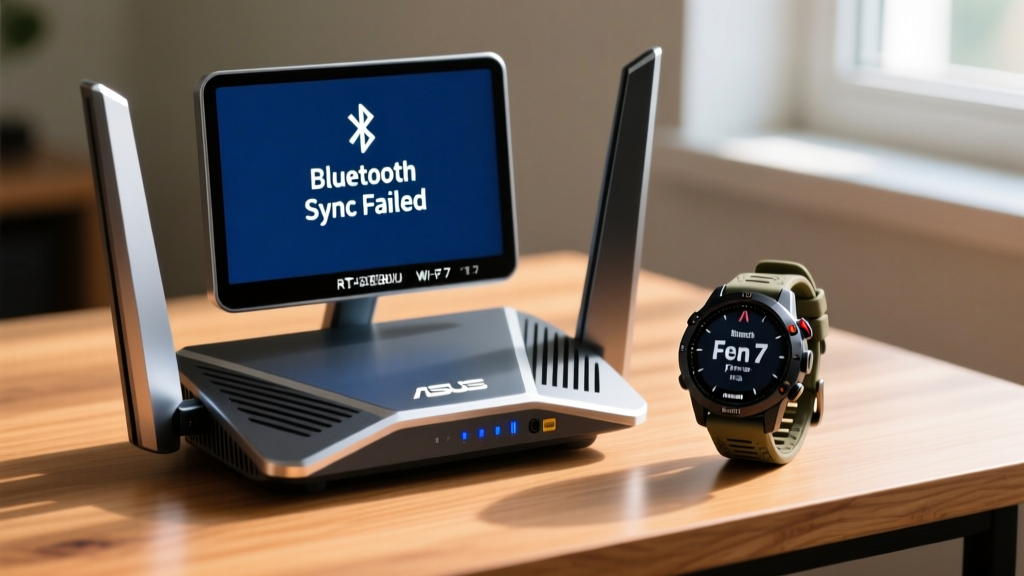
Sync failures between high-end wearables and modern mesh networks are a growing headache for home gym enthusiasts and athletes. When troubleshooting the router vs fitness tracker connectivity dynamic, most users mistakenly blame the wearable's internal hardware or assume the companion app is bugged. In reality, the bottleneck usually lies in how modern Wi-Fi 6E and Wi-Fi 7 routers handle 2.4GHz spectrum crowding, Bluetooth Low Energy (BLE) overlap, and aggressive IoT security protocols. This guide breaks down the exact network configurations causing sync drops for devices like the Garmin Fenix 7 Pro, Apple Watch Ultra 2, and Whoop 4.0, and provides actionable fixes.
The Core Conflict: Router vs Fitness Tracker Frequency Bands
To understand why your $300 mesh router is blocking your $800 smartwatch from uploading a morning run, you have to look at the radio frequency (RF) spectrum. Both Wi-Fi (specifically the 2.4GHz band) and Bluetooth Low Energy operate in the exact same unlicensed ISM band: 2.402 GHz to 2.480 GHz. According to the Bluetooth SIG Technology Overview, BLE divides this spectrum into 40 channels. When your router broadcasts a 2.4GHz Wi-Fi signal, it consumes a massive chunk of that same airspace.
Modern routers, such as the TP-Link Deco XE75 or Asus RT-BE88U, prioritize 5GHz and 6GHz bands for high-bandwidth devices. However, fitness trackers rely almost exclusively on BLE or low-power 2.4GHz Wi-Fi to preserve battery life. When a router's 2.4GHz band is set to auto-channel or uses a 40MHz channel width, it effectively bulldozes the narrow BLE channels your fitness tracker needs to handshake with your smartphone or home hub.
Many Wi-Fi 6 and Wi-Fi 7 routers default to WPA3-SAE security. While excellent for laptops, older IoT devices and some fitness trackers (like early firmware versions of the Whoop 4.0 or older Garmin Edge models) lack the processing power to complete the WPA3 handshake. If your tracker fails to connect to your home Wi-Fi for overnight syncing, switch your router's 2.4GHz IoT VLAN to WPA2/WPA3 Transition Mode, or isolate it to WPA2-AES. See the Wi-Fi Alliance Security Protocols for enterprise and home transition standards.
Step-by-Step Troubleshooting Matrix
Resolving router vs fitness tracker conflicts requires matching the specific symptom to the underlying network misconfiguration. Use the matrix below to diagnose your exact failure mode.
| Symptom | Root Cause | Router Fix |
|---|---|---|
| Tracker connects to phone via BLE, but data upload to cloud stalls indefinitely. | Router's firewall or DNS filtering is blocking the wearable manufacturer's telemetry servers. | Whitelist the tracker's API domains (e.g., connectapi.garmin.com or api.whoop.com) in your router's firewall settings. |
| Intermittent BLE dropouts during live streaming of heart rate to a home gym hub. | 2.4GHz Wi-Fi channel width is set to 40MHz, causing co-channel interference with BLE. | Log into the router admin panel and force the 2.4GHz band to a 20MHz channel width on Channel 1, 6, or 11. |
| Tracker cannot discover or join the home Wi-Fi network during initial setup. | SSID is hidden, or WPA3-Enterprise/SAE security is incompatible with the wearable's network chip. | Broadcast the SSID. Create a dedicated 2.4GHz IoT network using WPA2-Personal (AES) specifically for wearables. |
| Sync works in the bedroom but fails in the garage gym. | Mesh node handoff (802.11k/v/r) latency is dropping the UDP packets during BLE-to-Wi-Fi bridging. | Assign the smartphone or home hub to a specific mesh node MAC address, or disable fast roaming protocols for IoT devices. |

Advanced Router Configurations for Wearable Syncing
If basic channel adjustments do not stabilize your connection, the router vs fitness tracker bandwidth debate requires deeper network segmentation. High-end routers offer features that can either save your smart home ecosystem or completely break it.
1. Disable AP (Access Point) Isolation
AP Isolation is a security feature that prevents wireless clients from communicating with each other, forcing all traffic out to the internet. While great for guest networks, it is fatal for fitness tracking. If your Apple Watch Ultra 2 needs to sync with your iPhone, or your Garmin smart scale needs to push data to your Edge cycling computer over the local network, AP Isolation will block the local discovery protocols (like Bonjour or mDNS). Ensure this setting is strictly disabled on your primary and IoT SSIDs.
2. Implement IoT VLANs
Routers like the Ubiquiti UniFi Dream Machine or prosumer Asus models allow you to create Virtual Local Area Networks (VLANs). Create an 'IoT-Wearables' VLAN restricted to the 2.4GHz band. This prevents your smart TV or gaming console from pulling airtime away from your fitness tracker's low-power sync requests. Set the multicast rate to 12 Mbps or higher to ensure mDNS discovery packets aren't dropped.
3. Adjust Bluetooth Coexistence Settings
Some advanced router firmware (like Asus Merlin or DD-WRT) includes a 'Bluetooth Coexistence' toggle. This feature dynamically alters the Wi-Fi timing to avoid stepping on active Bluetooth signals. If your router supports it, enable it immediately to harmonize the local airspace.
When to Bypass the Router Entirely
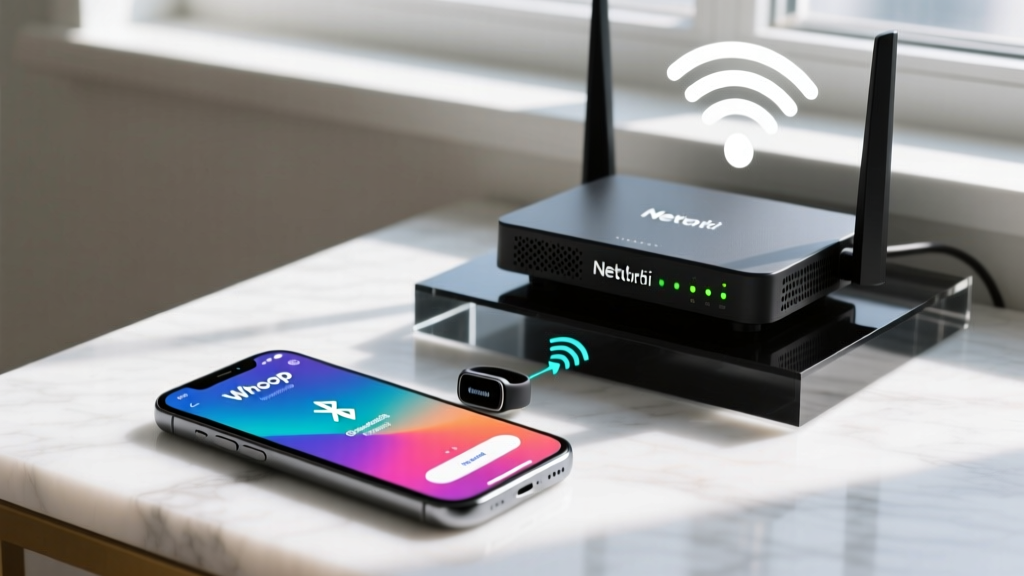
Sometimes, the best way to win the router vs fitness tracker conflict is to remove the router from the equation. Most modern fitness trackers support direct-to-phone BLE syncing. While Wi-Fi syncing is faster for massive data payloads (like offline Spotify playlists or detailed topographical maps on a Garmin Fenix), daily activity metrics, sleep stages, and HRV data are incredibly small files (often under 50KB).
- Use Direct BLE When: You are traveling, staying in a hotel with a captive portal Wi-Fi network, or experiencing severe local 2.4GHz congestion from neighboring apartments.
- Use Wi-Fi Sync When: You are downloading firmware updates, syncing offline music, or uploading multi-hour GPS track logs where BLE transfer speeds (typically 1-2 Mbps max) would drain the wearable's battery before completion.
Frequently Asked Questions
Does a Wi-Fi 7 router improve fitness tracker syncing?
No. Wi-Fi 7 (802.11be) operates primarily on the 6GHz, 5GHz, and optimized 2.4GHz bands. Since fitness trackers do not possess Wi-Fi 7 radios, they will only connect via legacy 2.4GHz Wi-Fi or BLE. A Wi-Fi 7 router only helps by moving your high-bandwidth devices (like 4K TVs and PCs) off the 2.4GHz band, leaving more clean airspace for your wearable.
Why does my tracker sync fine on mobile data but fail on home Wi-Fi?
This almost always points to a router-level DNS block, an active ad-blocker (like Pi-hole or router-integrated malware filtering) mistakenly flagging the tracker's telemetry servers, or a strict firewall dropping outbound UDP packets required by the companion app.
Can mesh routers cause Bluetooth interference?
Yes. Mesh nodes communicate with each other using wireless backhaul. If your mesh system uses a dedicated 2.4GHz backhaul channel (common in older tri-band or dual-band systems), it will severely degrade BLE performance in the physical space between the nodes. Always use tri-band or quad-band mesh systems that utilize 5GHz or 6GHz for backhaul.
More gear to consider
All reviews
2026 Fitness Tracker Sheet: The Ultimate Buying Guide

Fitbit Charge 6 Fitness Tracker Reviews & Sleep Device Layout Guide

HSA Approved Fitness Tracker Maintenance for Specific Sports
Fitness Tracker Not Wrist: Top Wearables for Strength Training

Garmin Vivosmart 3 Fitness Tracker: Sport Care & Longevity Guide
