Difference Between Fitness Tracker and Router Sync: Maintenance Guide
Learn the core difference between fitness tracker and router signals to maintain seamless Bluetooth and Wi-Fi coexistence in your home gym setup.

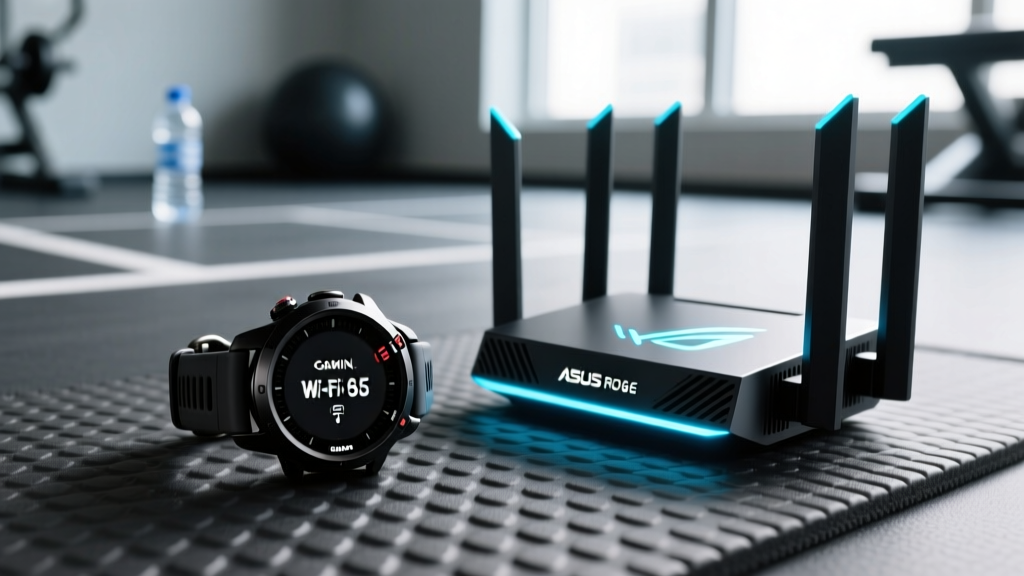
Home gyms are notoriously dense radio frequency (RF) environments. Between smart mirrors, Peloton tablets, Wi-Fi 6E mesh nodes, and wearable biometric sensors, the 2.4GHz spectrum is heavily congested. When your Garmin Forerunner 965 or Whoop 4.0 fails to sync post-workout, the root cause is rarely a defective device; it is almost always environmental interference. Understanding the fundamental difference between fitness tracker and router signal architectures is the critical first step in troubleshooting and maintaining a stable sync environment.
Mapping the Difference Between Fitness Tracker and Router Frequencies
To maintain your equipment, you must first understand the physical layer differences. Modern fitness trackers rely on Bluetooth Low Energy (BLE), which operates in the 2.402–2.480 GHz band, divided into forty 1-MHz channels. According to the Bluetooth Core Specification 5.4, BLE utilizes Adaptive Frequency Hopping (AFH) to jump between these channels, avoiding noisy frequencies.
Conversely, Wi-Fi routers utilize much wider channels. A standard 2.4GHz Wi-Fi channel is 20 MHz wide (or 40 MHz if bonded). When a router transmits on Channel 6 (2.437 GHz), it blankets a massive portion of the BLE spectrum. The core difference between fitness tracker and router hardware lies in transmission power: a router pushes up to 23 dBm (200 mW) of power, while a wearable’s BLE radio operates at a fraction of that (typically 0 to 4 dBm). This massive power disparity can cause receiver desensitization in the tracker, effectively blinding its antenna to incoming sync requests.
Step-by-Step Network Maintenance for Sync Stability
Maintaining your network environment requires deliberate configuration to respect the difference between fitness tracker and router transmission protocols. Follow this maintenance sequence every six months, or whenever you introduce new smart gym equipment.
- Audit and Lock Channel Widths: Access your router’s admin panel (typically 192.168.1.1). Navigate to the 2.4GHz wireless settings. Force the channel width to 20MHz. This leaves adequate spectral gaps for BLE AFH to function.
- Optimize Transmit (TX) Power: Most gaming routers, like the Asus ROG Rapture GT-AXE16000, default to 100% TX power. Reduce the 2.4GHz TX power to 50% (approximately 14 dBm). This prevents the router's signal from overwhelming the low-power receiver on your Apple Watch Ultra 2 or Fitbit Charge 6 without sacrificing coverage in a standard single-room gym.
- Disable Band Steering: Features branded as 'Smart Connect' or 'Airtime Fairness' aggressively push devices between 2.4GHz and 5GHz bands. Because BLE cannot interact with these protocols, the router's aggressive beacon intervals can cause localized noise. Separate your SSIDs into distinct 'HomeGym-2.4G' and 'HomeGym-5G' networks.
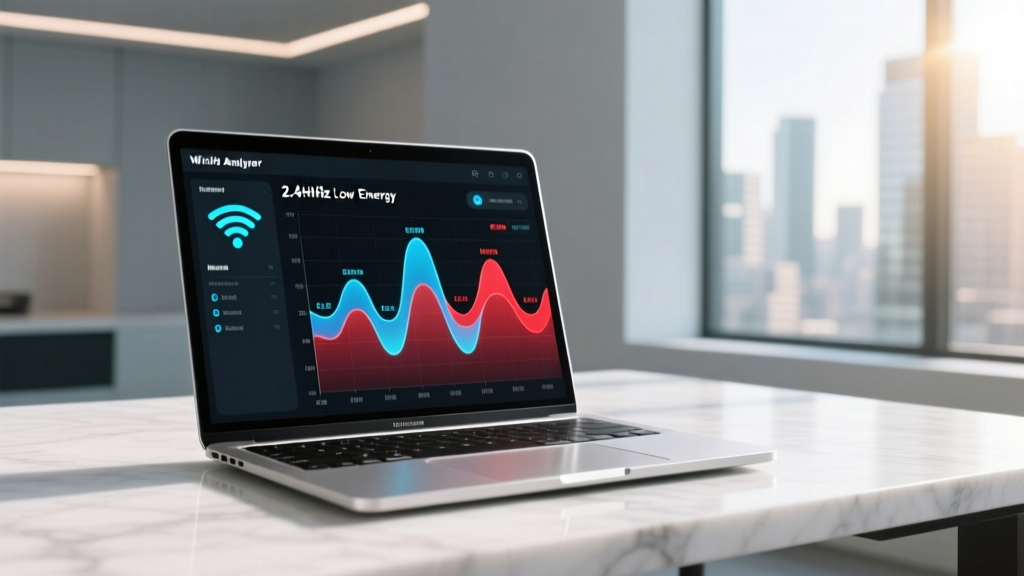
- Set Static Channels: Use a Wi-Fi analyzer app to scan your environment. Manually lock your 2.4GHz router to Channel 1, 6, or 11—whichever has the lowest overlapping noise from neighboring apartments. Auto-channel selection causes momentary spectrum drops when the router switches channels, interrupting active tracker syncs.
Optimal Router Settings Matrix for Wearable Coexistence
| Setting | 2.4GHz Band (Wearables/IoT) | 5GHz / 6GHz Band (Screens/Mirrors) |
|---|---|---|
| Channel Width | 20 MHz (Strict) | 80 MHz or 160 MHz |
| TX Power | Medium (50% / ~14 dBm) | High (100% / ~23 dBm) |
| Beacon Interval | 100 ms (Default) | 100 ms (Default) |
| Airtime Fairness | Disabled | Enabled |
Hardware Maintenance: Preventing Voltage Drop and Antenna Degradation
While network configuration addresses the environmental side, physical maintenance of the tracker is equally vital. Ignoring the physical difference between fitness tracker and router hardware—specifically the tracker's reliance on microscopic internal antennas and low-voltage batteries—leads to compounding sync failures.
- Charging Pin De-Corrosion: Sweat contains urea and sodium chloride, which rapidly corrodes the gold-plated pogo pins on the back of your tracker. Corrosion increases electrical resistance. When the battery charges through high-resistance pins, it experiences micro-voltage drops that degrade the BLE radio's transmission strength. Clean the contact points weekly using a cotton swab dipped in 99% isopropyl alcohol. Never use 70% alcohol, as the water content accelerates galvanic corrosion.
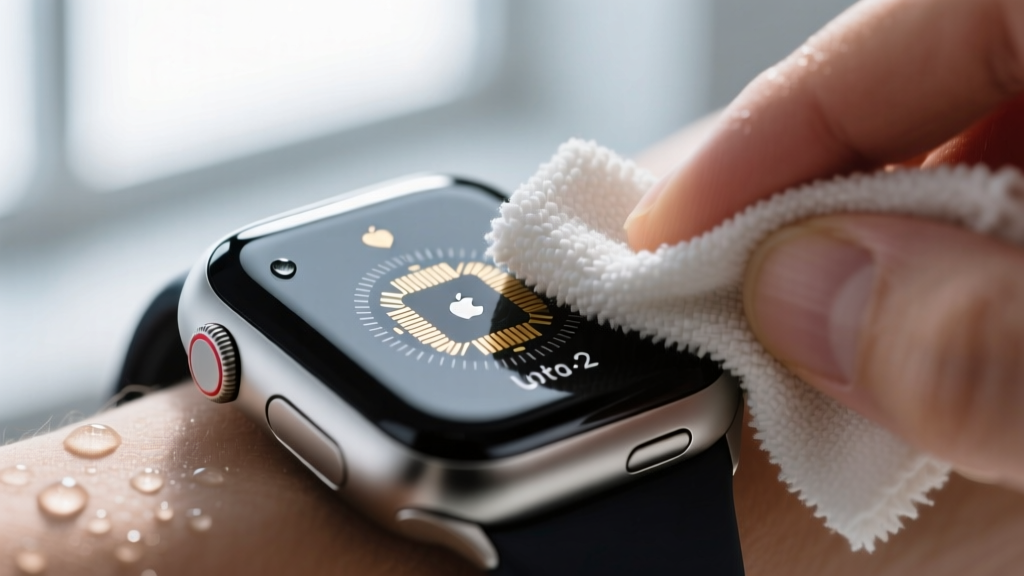
- Optical Sensor Array Care: A dirty optical heart rate sensor forces the tracker's processor to work harder, increasing the device's internal thermal output and drawing more current. This marginal increase in power draw can destabilize the BLE advertising interval. Wipe the sensor glass with a microfiber cloth after every session.
- Strap Material Inspection: Fluoroelastomer and silicone bands trap moisture against the skin, creating a localized dielectric barrier that detunes the wearable's internal antenna. Rotate between two bands to allow one to dry completely, maintaining optimal antenna resonance.
Troubleshooting Decision Tree: When Syncs Fail
If your device still refuses to sync after applying the maintenance protocols above, use this diagnostic matrix to isolate the failure point. This framework respects the technical boundaries defined by FCC Part 15 regulations regarding unlicensed 2.4GHz spectrum operations.
| Symptom | Probable Cause | Targeted Fix |
|---|---|---|
| Tracker pairs but drops connection exactly 45 seconds into sync. | Router DHCP lease conflict or aggressive client isolation timeout. | Assign a static IP reservation to the phone/tablet used for syncing; disable 'AP Isolation'. |
| Sync works in the bedroom but fails immediately upon entering the home gym. | USB 3.0 interference from a nearby smart hub or treadmill console. | Shield USB 3.0 cables with ferrite cores or move the smart hub at least 3 feet away from the sync zone. |
| App shows 'Searching for Device' indefinitely despite full battery. | BLE cache corruption on the host smartphone due to OS background limits. | Clear the Bluetooth cache in the host OS settings; force-close and restart the companion app. |
By systematically maintaining both the RF environment and the physical hardware, you eliminate the friction points that cause data loss. For deeper insights into modern wireless protocols, refer to the Wi-Fi Alliance certification standards to ensure your router's firmware is optimized for high-density IoT environments. Consistent application of these maintenance protocols guarantees that your biometric data transfers seamlessly, keeping your training logs accurate and uninterrupted.
More gear to consider
All reviews
Fitbit Charge 2 Fitness Tracker vs 2026 Budget Smartwatches

Xiaomi Smart Band 9 Fitness Tracker Sleep Layout Comparison

Guide: Cycling Computers as a Fitness Tracker No Phone Required

Garmin Vivofit 4 Fitness Tracker vs Cycling Computers: Sensor Guide